Installer company
To create locations and connect Navigators, you need to be a member of an installer company in the Currentt App. Once you have been admitted to the Currentt partner program, you can be added to the installer company you work for.
🧰 Installer companies
As a Currentt installer, you are a member of the installer company you work for. That membership lets you create locations on behalf of the installer company and connect the Currentt Navigator to those locations.
Installer companies are part of the Currentt partner program. Installer companies are managed by Currentt.
When an installer passes the exam, there are two possible scenarios:
- New installer company: when an installer passes the installer exam and no installer company exists yet, Currentt will make sure the company is created and this person is added as administrator of the company.
- Existing installer company: when an installer passes the installer exam and the installer company already exists, the administrator of that installer company can invite the installer as a member.
🏘️ Managing locations
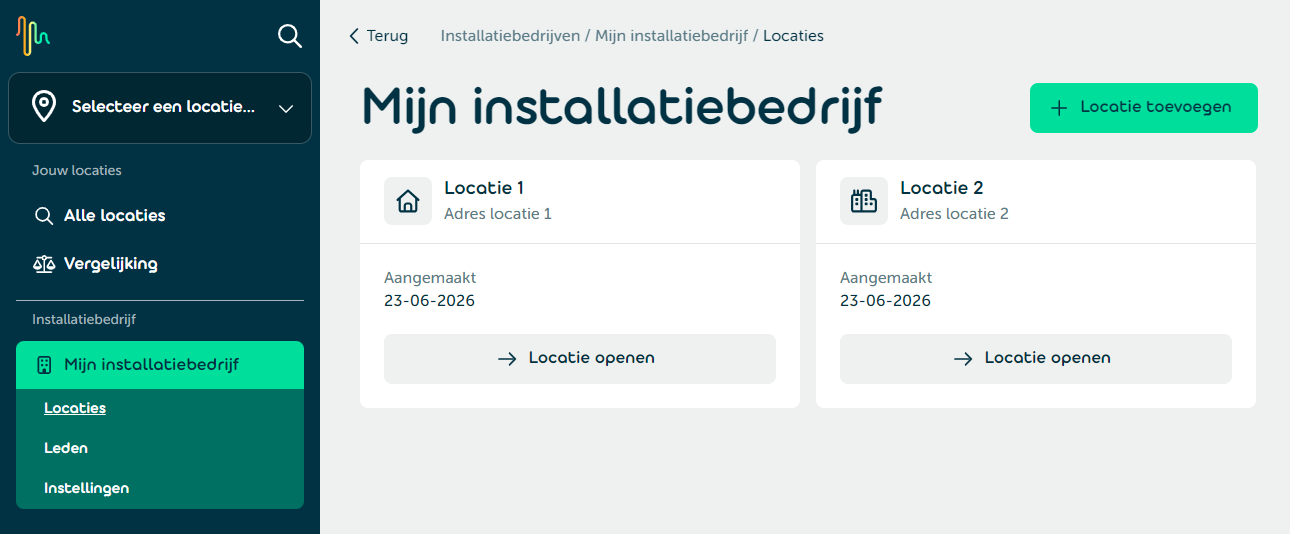
To manage the locations of an installer company, first open the desired installer company in the main menu. From there you can open and add locations.
Adding a location
Only installers can create new locations. Click ➕ Add location in the top right and fill in the following details:
- Address: Enter the postal code and house number and select the correct address from the list.
- Name: Give the location a recognizable name.
- Location photo: Optionally upload a photo of the location.
- Building type: Choose Residence (such as a house or apartment) or Business (such as an office or factory).
- Floor area: Optionally enter the floor area in m².
Click Save to create the location.
👨🏼🔧 Managing members
As an administrator of an installer company, the Members page shows an overview of all members of the installer company. Each member shows their name and role.
Use the ··· menu on a member to:
- Edit: Change the member's role (Administrator or Member).
- Delete: Remove the member from the location.
Adding a member
Click Add member to invite someone:
- Enter the installer's email address. If the installer already has a Currentt account, use that email address.
- Choose a role: Administrator (manages the installer company) or Member (manages locations and Navigators).
The invitation will appear under Pending invitations and is valid for one month.
Pending invitations
Invitations that have not yet been accepted are listed under Pending invitations. Use the ··· menu to delete a pending invitation.
Accepting an invitation
The invited installer receives an email with the invitation.
- If the installer already has an account, they can log in directly.
- If the installer does not yet have an account, they will first be asked to create one using the same email address.
Once logged in, the installer clicks the profile button in the main menu and then Company invitations. There they can accept or decline the invitation.
ℹ️ Managing settings
As an administrator of an installer company, you can change the company details — such as company name, email address, and phone number — on the Settings page.