Surplus automation
This automation controls how Currentt uses solar surplus to drive an actuator.
📋 Overview
With the surplus automation, Currentt automatically switches an actuator on or off based on available solar surplus. The actuator is activated once the surplus power exceeds a set threshold, and deactivated when the surplus drops away.
For some features to work correctly, the energy tariffs of the relevant location must be available. Make sure the correct energy tariffs have been entered in the Currentt App.
Scenarios
- I have an inverter, battery, and EV charger. I don't want my inverter to feed back to the grid — it only delivers directly to the battery or the EV charger.
- I have solar surplus and want to use it to control my EV charger. I set an activation threshold based on the amount of solar surplus in kWh.
- I want my inverter to only power my devices with solar surplus within a specific time window (during the day).
Example
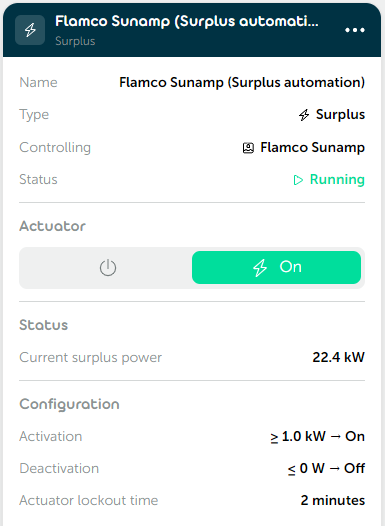
🎛️ Possibilities
Actuator
You choose which actuator (such as an EV charger, heat pump, or other device) is controlled by the automation.
Optionally, you configure an actuator meter: the meter that measures the actuator's consumption. This allows the surplus system to automatically switch off the actuator when there is insufficient surplus available.
Activation
You configure when the actuator is switched on:
- Activation threshold (W): The minimum surplus power that must be available before the actuator is activated. Default: 100 W.
- Active status: The status the actuator receives when sufficient surplus is available. Default: On.
Deactivation
You configure when the actuator is switched off again:
- Deactivation threshold (%): The percentage of the activation threshold at which the actuator is switched off. With a threshold of 10% and an activation threshold of 100 W, the actuator turns off as soon as the surplus drops below 10 W. Default: 10%.
- Inactive status: The status the actuator receives when insufficient surplus is available. Default: Off.
Times
You optionally configure time limits to protect the actuator and guarantee a minimum operating time:
- Actuator lock time: Minimum time between two status changes. Protects the actuator against rapid switching. Default: 10 minutes.
- Minimum daily runtime: Guarantees a minimum runtime per day for the actuator. Also set the time by which this minimum runtime must have been reached. Default: 1 hour, checked at 00:00.
📝 Managing automations
Adding an automation
- Go to Automations within your installation.
- Click
➕to add a new automation. - Select Surplus as the type and click
Next. - Choose the desired actuator. Optionally enable the Actuator meter and select the corresponding meter. Click
Next. - Give the automation a recognizable name and click
Next. - Set the activation threshold and the active status and click
Next. - Set the deactivation threshold and the inactive status and click
Next. - Optionally configure the lock time and the minimum daily runtime.
- Click
➕ Createto save the automation.
Editing an automation
Open the relevant automation and adjust the desired settings. Each step has a Save & close button that saves your changes immediately without having to go through all steps again.