Running the Installation Wizard
Make sure you are connected to the local network and go to currentt.local. There, configure the connected devices using the Installation Wizard.
About the Installation Wizard
The Navigator is now ready to be further configured. To do this, connect a phone or laptop to the web application that is locally available via the Navigator.
The wizard in the Installation Wizard automatically detects and configures devices, making installation and configuration straightforward. Additionally, it is also possible to configure the system manually.
Certain installations require additional documentation or specific product knowledge. This includes configurations with specific brands, peripherals, or network integration.
Opening the Installation Wizard
To access the Installation Wizard, your phone or laptop must be connected to the same network as the Navigator. This means your phone or laptop must be connected to the same WiFi network or to the same router.
If this is the case, you can access the Installation Wizard by navigating to currentt.local in your browser.
An alternative method is to go to the Manage option on the Navigator's screen. A QR code will then appear that you can scan. The code directs the browser to the Navigator's local IP address.
Running the automatic installation wizard
Using the Installation Wizard, all supported devices at the location can be configured. The automatic installation wizard is accessible via Dashboard → Installation.
Then follow the on-screen instructions to connect and configure all devices.
Running a manual installation
In addition to the automatic installation wizard, it is also possible to configure the Navigator manually.
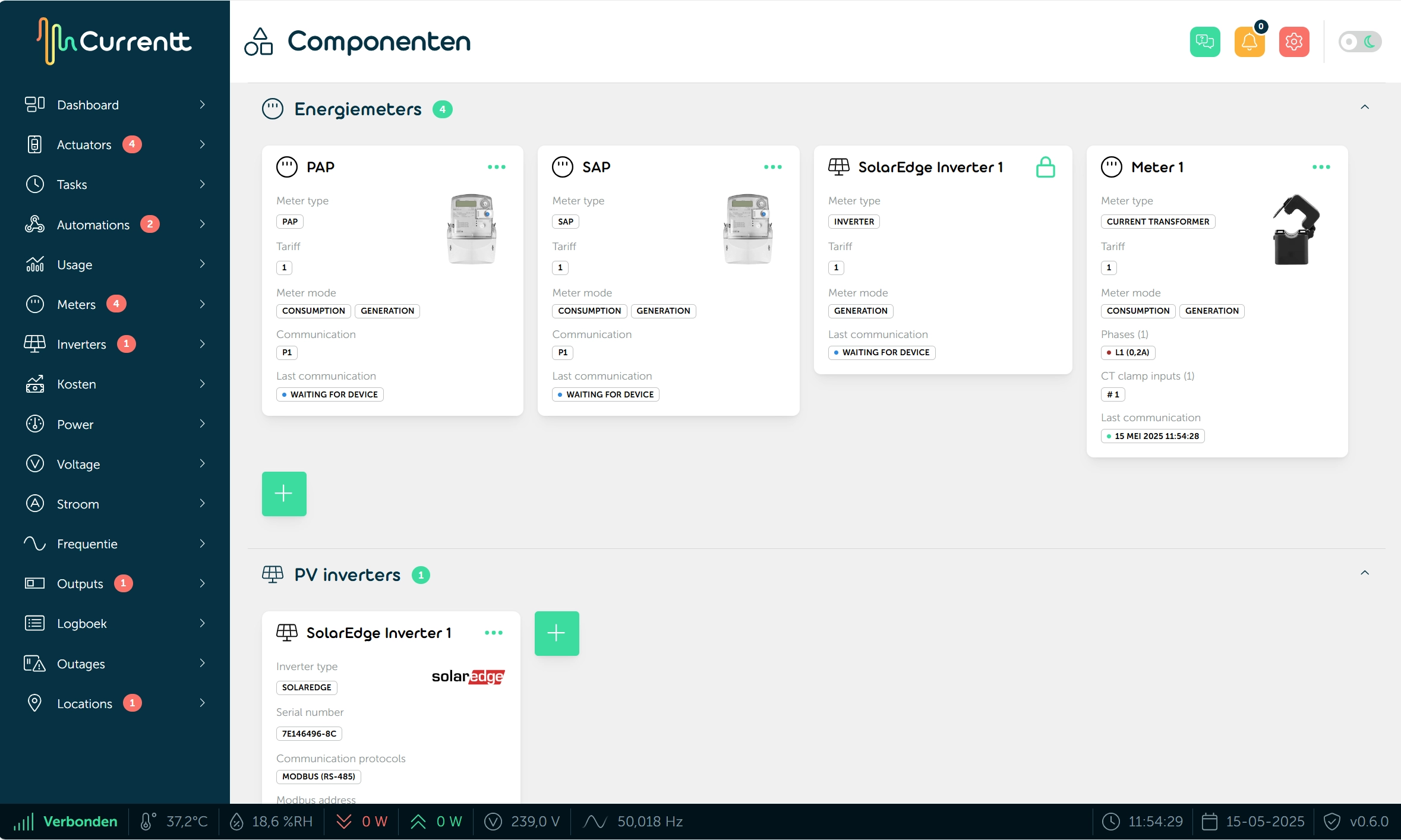
The manual configuration is available via Dashboard → Components.
Here you can add and configure the desired devices one by one.