Network connection
It is recommended to connect the Navigator to the internet using a network cable. In that case, no further action is needed and the internet connection will work immediately. However, it is also possible to connect the Navigator via WiFi.
🔌 Via network cable (recommended)
If you have connected the Navigator to the modem using a network cable, the connection will work in virtually all cases right away. The WiFi instructions below are no longer needed.
If there is no immediate internet connection via the network cable, there may be restrictions on the network, such as MAC address filtering. These restrictions must be lifted by the network administrator.
🛜 Connect via WiFi
If no network cable is connected, the Navigator starts WiFi configuration mode, so the Navigator gets internet access via the WiFi network. To do this, the Navigator temporarily creates its own WiFi network named Currentt.
Make sure the name of the location's WiFi network and the WiFi password are known.
- Connect a phone or laptop to the WiFi network named
Currentt.- You can do this through the network settings of that device and select the network there.
- You can also scan the QR code on the Navigator's screen with the camera of that device. In that case, note that the configuration page may not open right away (see next step). If so, still go to the device's network settings to open the configuration page of the WiFi network.
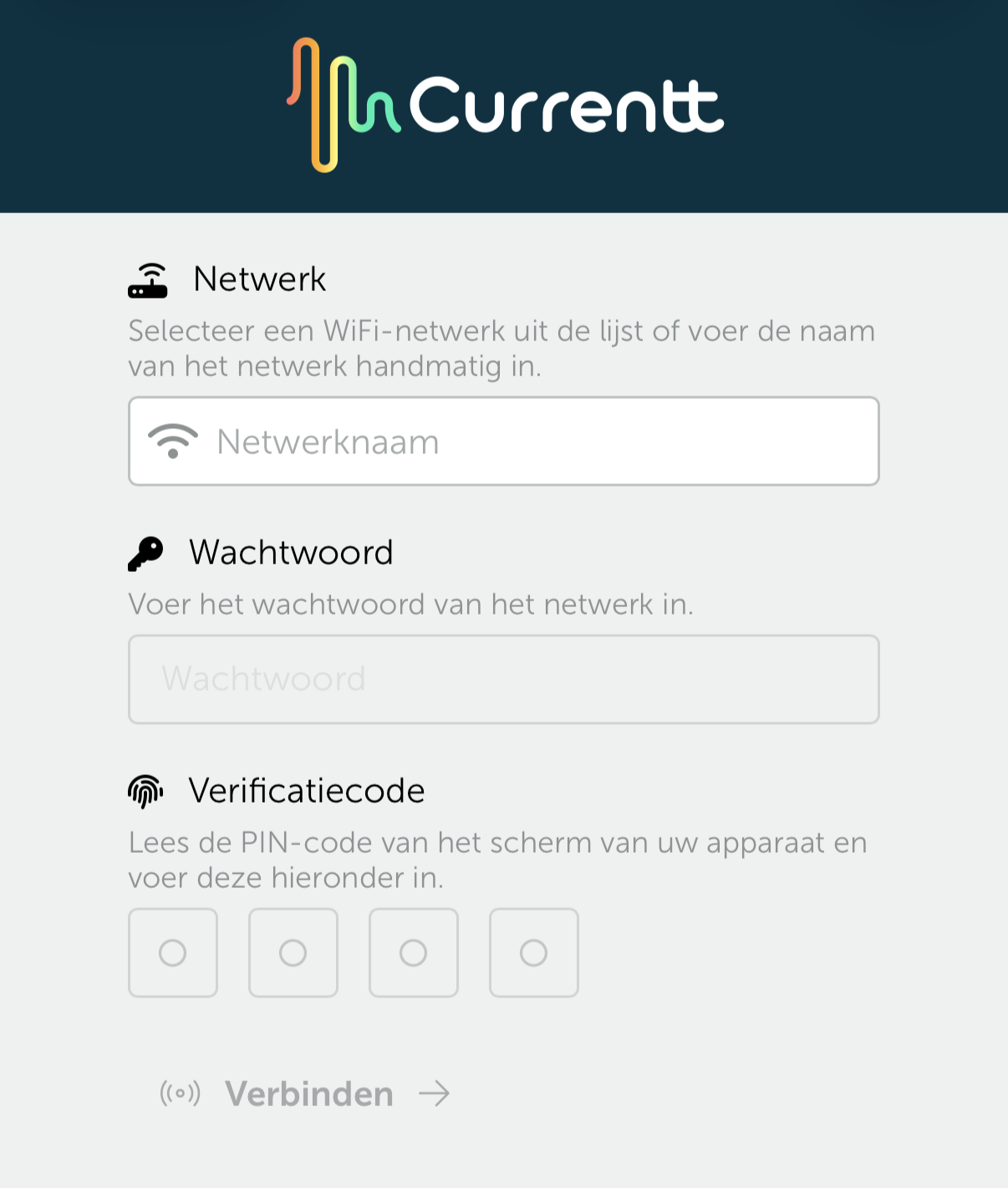
- Once you are connected to the network, a configuration page appears that allows you to connect the Navigator to the location's WiFi network.
- Select the WiFi network of the location/customer here.
- Log in with the password of the WiFi network of the location/customer.
- Enter the PIN code shown on the Navigator's screen.
- Click
Connect.
The Navigator is now connected to the WiFi network of the location/customer.
🚫 No connection
If you do not set up a network connection (if you skip this step, or if connecting does not work), you can still continue starting up the Navigator. In that case you need to set the date and time manually.