P1 meter
The Currentt Navigator can be connected directly to the P1 port of a smart meter. Through the P1 port, the Navigator reads real-time energy data such as consumption, feed-in, power per phase, and voltage.
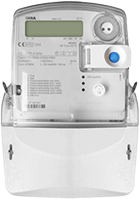
🔗 P1 cable
The P1 port uses an RJ12 (6P6C) connector. A suitable P1 cable is included as standard with the Currentt Navigator.
🪛 Installation instructions
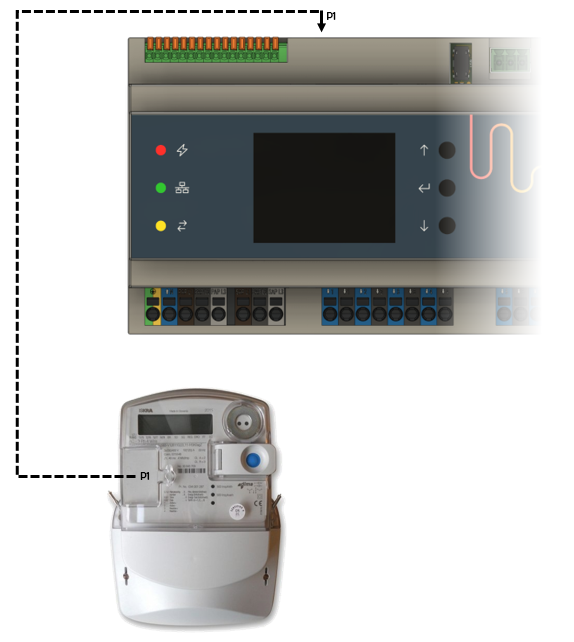
Option 1: One P1 meter (standard)
Connect the P1 cable to the left P1 port of the Currentt Navigator. This is the input port to which the smart meter is connected.
The right P1 port automatically functions as an output in this configuration. Another P1 dongle or P1 device can be connected to it and will receive the smart meter data forwarded by the Navigator. This works automatically without any further configuration.
Option 2: Two P1 meters (PAP/SAP configuration)
The Currentt Navigator supports reading two P1 meters simultaneously. This is needed for a PAP/SAP configuration:
- PAP (Primary Allocation Point) — the main metering point on the grid connection. This is the meter that records the total consumption and feed-in of the home or business premises. Each grid connection has exactly one PAP.
- SAP (Secondary Allocation Point) — a second metering point behind the same grid connection. The SAP makes it possible to measure part of the consumption or generation separately and settle it under a different energy contract.
This falls under the MLOEA regulation (Multiple Suppliers On One Connection). This allows two different energy contracts to be active on the same grid connection. The Currentt Navigator can automatically switch between energy contracts based on the PAP and SAP measurements.
| Navigator P1 port | Function | Connection |
|---|---|---|
| Left (port 1) | PAP — main metering point | Smart meter main connection |
| Right (port 2) | SAP — secondary metering point | Smart meter secondary allocation point |
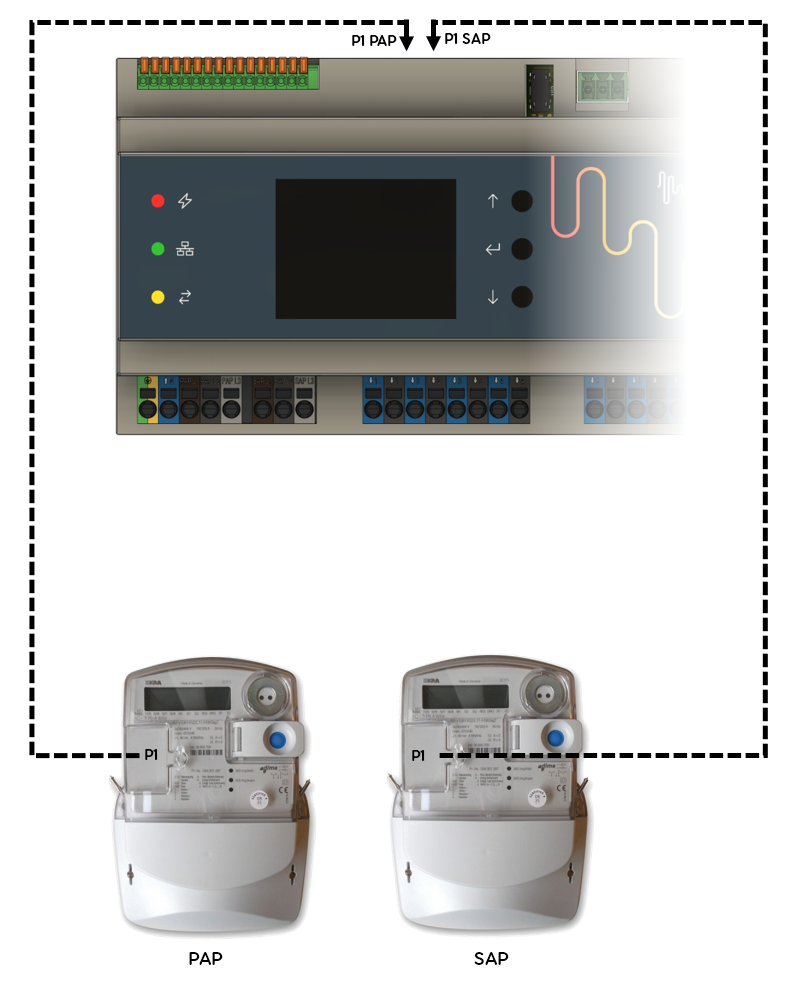
With a single P1 meter (no SAP), the right port automatically acts as a pass-through output. With two meters, both ports are used as inputs.
📋 Configuration
P1 meters are automatically detected by the Currentt Navigator. As soon as the P1 cable is connected, the Navigator recognizes the meter type and DSMR version and immediately begins reading data. Manual configuration through the setup wizard or components menu is not required.
For P1 meters with an update interval longer than 1 second (such as DSMR 4.x meters with a 10-second interval), we recommend configuring an external main meter using CT clamps or a Modbus RTU meter. The lower update frequency of older P1 meters is insufficient for accurate real-time control of batteries and other devices.
🔄 Switching between 2 meters (PAP/SAP)
When the Currentt Navigator Pro is connected to both a PAP and a SAP, it can function as an ATS (Automatic Transfer Switch). This allows loads and generators to be automatically switched between the primary (PAP) and secondary (SAP) meter.
The Navigator switches by accurately measuring voltage and current and making the transition at the most optimal moment. The switching is performed using contactors. The response times of the contactors are taken into account when determining the ideal switching moment, minimizing the current dip as much as possible — or in some cases making it imperceptible.
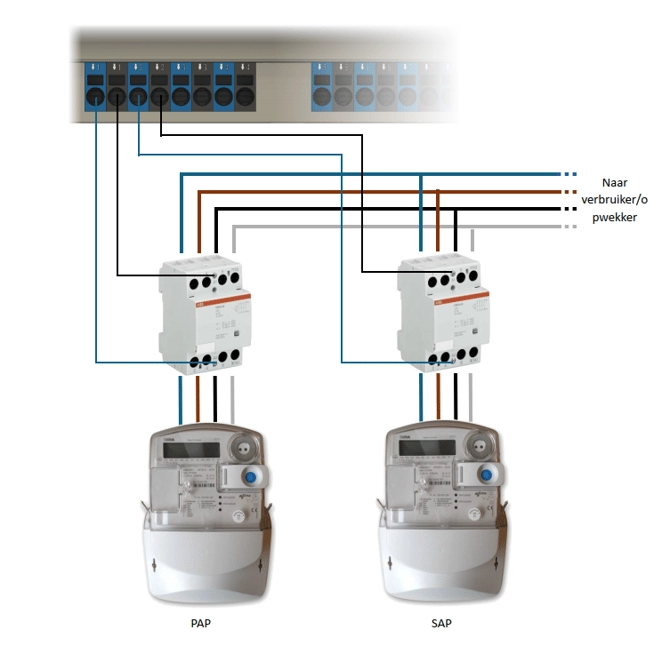
To switch between two meters (PAP and SAP), an ATS setup with contactors must be installed. Refer to the separate ATS installation document for exact wiring instructions.
✅ Supported meters
Dutch meters (DSMR)
| Brand | Model | DSMR version | Update interval | Voltage per phase | Current per phase |
|---|---|---|---|---|---|
| Landis+Gyr | E350 (ZCF100) | 2.2 | On request | No | No |
| Landis+Gyr | E350 (ZCF110) | 4.0 | 10 sec | No | No |
| Landis+Gyr | E360 | 5.0 | 1 sec | Yes | Yes |
| Iskra | MT382 | 4.0 | 10 sec | No | No |
| Iskra | ME382 | 5.0 | 1 sec | Yes | Yes |
| Iskra | AM550 | 5.0 | 1 sec | Yes | Yes |
| Kaifa | MA105 | 4.0 | 10 sec | No | No |
| Kaifa | MA304 | 4.0 / 4.2 | 10 sec | No | No |
| Kaifa | MA340 | 5.0 | 1 sec | Yes | Yes |
| Sagemcom | T210-D | 5.0 | 1 sec | Yes | Yes |
| Sagemcom | XS210 | 5.0.2 | 1 sec | Yes | Yes |
| Honeywell | AS300P | 4.0 | 10 sec | No | No |
| ZIV | E0058 | 5.0 | 1 sec | Yes | Yes |
Belgian meters (e-MUCS)
| Brand | Model | Standard | Update interval | Voltage per phase | Current per phase |
|---|---|---|---|---|---|
| Sagemcom (Siconia) | S211 | e-MUCS 1.0 | 1 sec | Yes | Yes |
| Sagemcom (Siconia) | T211 | e-MUCS 1.0 | 1 sec | Yes | Yes |
| Itron | ACE6000 | e-MUCS 1.0 | 1 sec | Yes | Yes |
| Sagemcom | T210-D (BE) | e-MUCS 1.4 | 1 sec | Yes | Yes |
In Belgium, the P1 port must first be activated through the Fluvius portal ("Mijn Fluvius") before data is transmitted.
📊 DSMR versions
DSMR stands for Dutch Smart Meter Requirements, the standard for smart meters in the Netherlands.
| Property | DSMR 2.2 | DSMR 4.x | DSMR 5.0 / 5.0.2 |
|---|---|---|---|
| Baud rate | 9600 (7E1) | 115200 (8N1) | 115200 (8N1) |
| Update interval | On request | Every 10 seconds | Every 1 second |
| Voltage per phase | No | No | Yes |
| Current per phase | No | No | Yes |
| CRC check | No | Yes | Yes |
DSMR 5.0 meters provide data every second, which is ideal for real-time energy management. Older DSMR 4.x meters provide data every 10 seconds. The Currentt Navigator supports all versions.
🛟 Troubleshooting
| Problem | Possible cause | Solution |
|---|---|---|
| No data from P1 meter | Cable not connected | Verify that the RJ12 cable is properly connected to both the meter and the Navigator |
| No data from P1 meter | Wrong P1 port | Use the left P1 port for the first/only meter |
| No data from P1 meter | P1 port not activated (Belgium) | Activate the P1 port through the Fluvius portal ("Mijn Fluvius") |
| No data from P1 meter | Old DSMR 2.2 meter | DSMR 2.2 meters require an active request — the Navigator handles this automatically |
| Missing voltage/current per phase | DSMR 4.x meter | Older DSMR versions do not support voltage/current per phase. This is only available with DSMR 5.0+ |
| Low update frequency | DSMR 4.x meter | DSMR 4.x meters send data every 10 seconds. This is a limitation of the meter and cannot be changed |
| SAP meter not recognized | Wrong port | Connect the SAP meter to the right P1 port |